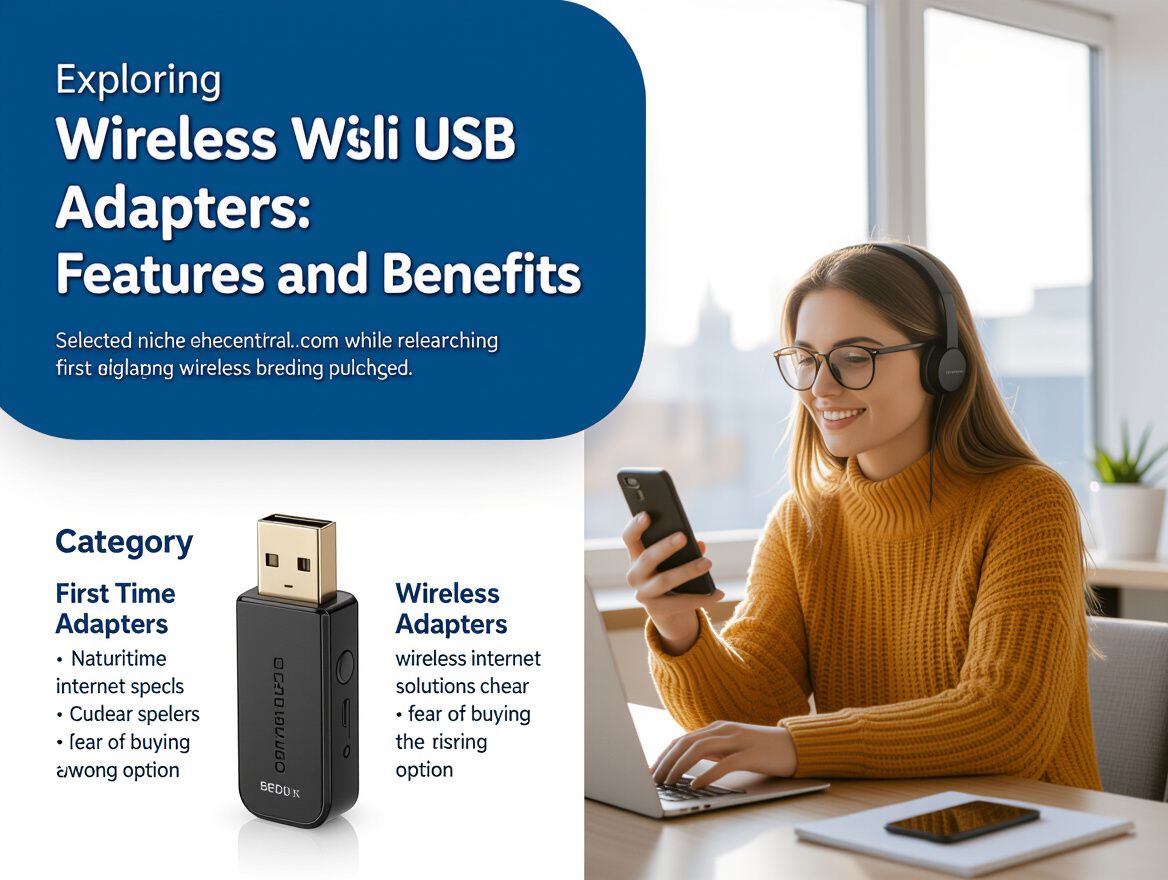
Choosing Wireless Adapters for Desktop: Key Features to Consider

Understanding Wireless Adapters for Desktop
Wireless adapters for desktop computers are essential devices that enable seamless internet connectivity without the need for cumbersome cables. These adapters serve as a bridge between your desktop and wireless networks, allowing users to connect to Wi-Fi networks for browsing, streaming, and online gaming. As desktop users increasingly rely on wireless connections for their daily activities, the importance of selecting a reliable wireless adapter cannot be overstated.
Choosing the right wireless adapter can significantly impact your internet experience. Factors such as speed, range, and compatibility with your desktop's hardware are crucial to ensure optimal performance. This article aims to guide you through the key features to consider when selecting a wireless adapter, helping you make informed decisions that suit your specific needs.
By understanding the various features and trade-offs associated with different wireless adapters, you can confidently choose a solution that enhances your desktop's connectivity and overall functionality.
Essential Features to Look For
When selecting wireless adapters for desktop use, several critical features can significantly influence performance and compatibility. Understanding these features will help you make an informed decision that meets your connectivity needs.
-
Dual-Band Capabilities: Look for adapters that support both 2.4GHz and 5GHz bands. Dual-band adapters provide greater flexibility and can reduce interference, especially in crowded wireless environments, enhancing overall performance.
-
Speed Ratings (e.g., Mbps): Check the speed ratings specified by the manufacturer. Higher Mbps ratings indicate better data transfer rates, which is crucial for activities like gaming, streaming, or large file transfers. Aim for adapters that offer at least 300 Mbps for decent performance.
-
Compatibility with Operating Systems: Ensure the adapter is compatible with your operating system (Windows, macOS, Linux, etc.). Some adapters may have limited support, which can lead to connectivity issues if not properly matched with your system.
-
Antenna Design and Range: Consider the antenna design; external antennas often provide better range and signal strength compared to internal ones. Look for adapters with adjustable antennas for optimal positioning, especially if your desktop is located farther from the router.
-
USB Version and Connectivity Options: Pay attention to the USB version of the adapter. USB 3.0 offers faster data transfer rates compared to USB 2.0, which can be beneficial for high-speed internet connections. Also, consider whether you need a USB Type-A or Type-C connector based on your desktop's available ports.
By evaluating these features, you can identify a wireless adapter that not only fits your desktop setup but also delivers reliable and efficient wireless connectivity.
Trade-offs and Considerations
When selecting wireless adapters for desktop use, it's vital to weigh various trade-offs that can significantly impact performance and user experience. Understanding these factors can help you make a more informed decision that aligns with your specific needs.
Cost vs. Performance
- Budget Constraints: Lower-cost options may suffice for basic tasks like browsing or email. However, they often compromise on speed and reliability.
- Performance Expectations: Higher-priced models typically offer better performance, including faster speeds and improved connectivity stability, which is crucial for gaming or streaming.
Range vs. Speed
- Signal Coverage: Adapters with a wider range are beneficial for larger homes or office spaces, allowing connectivity from greater distances. However, this can sometimes lead to reduced speeds.
- Speed Requirements: If your primary use involves high-bandwidth activities, prioritize speed over range. Look for adapters that support the latest Wi-Fi standards (e.g., Wi-Fi 6) for optimal performance.
Single-band vs. Dual-band Options
- Single-band Adapters: These operate on the 2.4 GHz frequency, which may be sufficient for basic internet usage but is more prone to interference and congestion.
- Dual-band Adapters: Offering both 2.4 GHz and 5 GHz options, dual-band adapters provide flexibility and better performance in crowded environments, making them ideal for heavy internet users.
Driver Support and Updates
- Compatibility: Ensure that the adapter you choose has solid driver support for your operating system. This can impact installation ease and overall functionality.
- Future-proofing: Regular updates from manufacturers can enhance performance and security. Research brands known for consistent support to avoid potential issues down the line.
By considering these trade-offs, you can better assess which wireless adapter aligns with your desktop connectivity needs, ensuring a reliable and efficient internet experience.
Potential Risks and Limitations
When selecting wireless adapters for desktop use, it's essential to consider potential risks and limitations that may affect performance and security. Understanding these factors can help you make a more informed decision.
-
Interference from Other Devices: Wireless signals can be disrupted by various household devices, including microwaves, cordless phones, and other Wi-Fi networks. If you live in a densely populated area, this interference can lead to unstable connections and reduced speeds.
-
Security Vulnerabilities: Wireless connections are inherently more susceptible to security threats compared to wired connections. Weak encryption protocols or outdated firmware can expose your network to unauthorized access. Ensure that your wireless adapter supports robust security standards such as WPA3.
-
Incompatibility with Certain Systems: Not all wireless adapters are universally compatible with every operating system or desktop configuration. Before purchasing, verify that the adapter supports your specific system requirements to avoid connectivity issues.
-
Reliability of Connection: Wireless connections can sometimes be less reliable than wired ones, especially in environments with multiple barriers or high traffic. If your desktop is located far from the router or in a spot with obstacles, you may experience dropped connections or reduced performance.
By considering these risks, you can better assess the suitability of a wireless adapter for your desktop setup and ensure a more reliable and secure internet experience.
Frequently Asked Questions
When considering wireless adapters for desktop use, many potential buyers have common questions that can help clarify their choices. Below are some frequently asked questions that address key concerns.
What buyer problem do wireless adapters resolve?
Wireless adapters for desktops primarily solve connectivity issues, allowing users to connect to Wi-Fi networks without the need for physical cables. This is particularly beneficial for desktops that lack built-in wireless capabilities or for those looking to improve their internet connection speed and reliability. They can also help in situations where the desktop is located far from the router, offering a more flexible setup.
How do I know if an adapter is compatible with my desktop?
To ensure compatibility, check the following:
- Operating System: Confirm that the adapter supports your OS (Windows, macOS, Linux).
- Interface: Most adapters use USB ports; make sure you have the necessary type available (USB-A, USB-C).
- Driver Support: Look for adapters that provide drivers or have plug-and-play functionality for easy installation.
What are the signs of a failing wireless adapter?
A failing wireless adapter may present several symptoms, including:
- Intermittent Connectivity: Frequent disconnections or inability to connect to the network.
- Slow Speeds: Noticeable drops in internet speed compared to previous performance.
- Device Recognition Issues: The adapter is not detected by your desktop or shows an error message.
Should I prioritize speed or range when choosing an adapter?
The choice between speed and range depends on your specific needs:
- Speed: If you're primarily using your desktop for activities that require high bandwidth (like gaming or streaming), prioritize speed specifications (look for standards like Wi-Fi 5 or Wi-Fi 6).
- Range: If your desktop is located far from the router, prioritize range. Look for adapters with features like external antennas or those designed for long-distance connections.
By considering these factors, you can make a more informed decision when selecting a wireless adapter for your desktop.
Making the Right Choice
When selecting wireless adapters for desktop use, it's crucial to consider several key features that can impact your connectivity experience. Recapping these essential aspects will empower you to make an informed decision tailored to your specific needs.
- Compatibility: Ensure the adapter is compatible with your desktop's operating system and hardware. Look for specifications that match your device's requirements.
- Speed and Standards: Familiarize yourself with wireless standards (like Wi-Fi 5 or Wi-Fi 6) and their corresponding speed capabilities. Higher standards typically offer better performance and efficiency.
- Range and Signal Strength: Assess the range of the adapter, especially if your desktop is located far from the router. Consider models with external antennas for improved signal strength.
- Security Features: Look for adapters that support the latest security protocols (such as WPA3) to protect your network from potential threats.
- Ease of Installation: Some adapters may require more complex setups than others. Choose one that fits your technical comfort level and installation preferences.
Before making a purchase, take a moment to evaluate your specific needs, such as the type of tasks you perform online, the number of devices connected, and your workspace layout. By weighing these factors against the features of potential adapters, you can confidently select a wireless solution that enhances your desktop's connectivity without unnecessary compromises.